

Google Chrome
- 4.1
- Rating
- 10.00B
- Installs
- Free
- Price

 Analysis by App-foxy
I use Google Chrome as my everyday browser when I need one familiar place for websites, searches, saved pages, and account access. It is a communication app in the broadest sense: although it is not a messenger, it is often the tool that opens webmail, social networks, work dashboards, video calls, forums, and online documents. That makes its quality depend less on one flashy feature and more on how smoothly it handles dozens of small tasks.
My overall impression is that Chrome remains easy to recommend when you want a mainstream browser that works closely with Google services. It is free, available for Everyone, and developed by Google LLC. Its enormous audience is reflected in an average score of 4.1 from around 49 million ratings, along with more than a billion installs. Those figures do not make it perfect, but they do show how deeply it has become part of everyday mobile browsing.
How Chrome feels in current everyday use
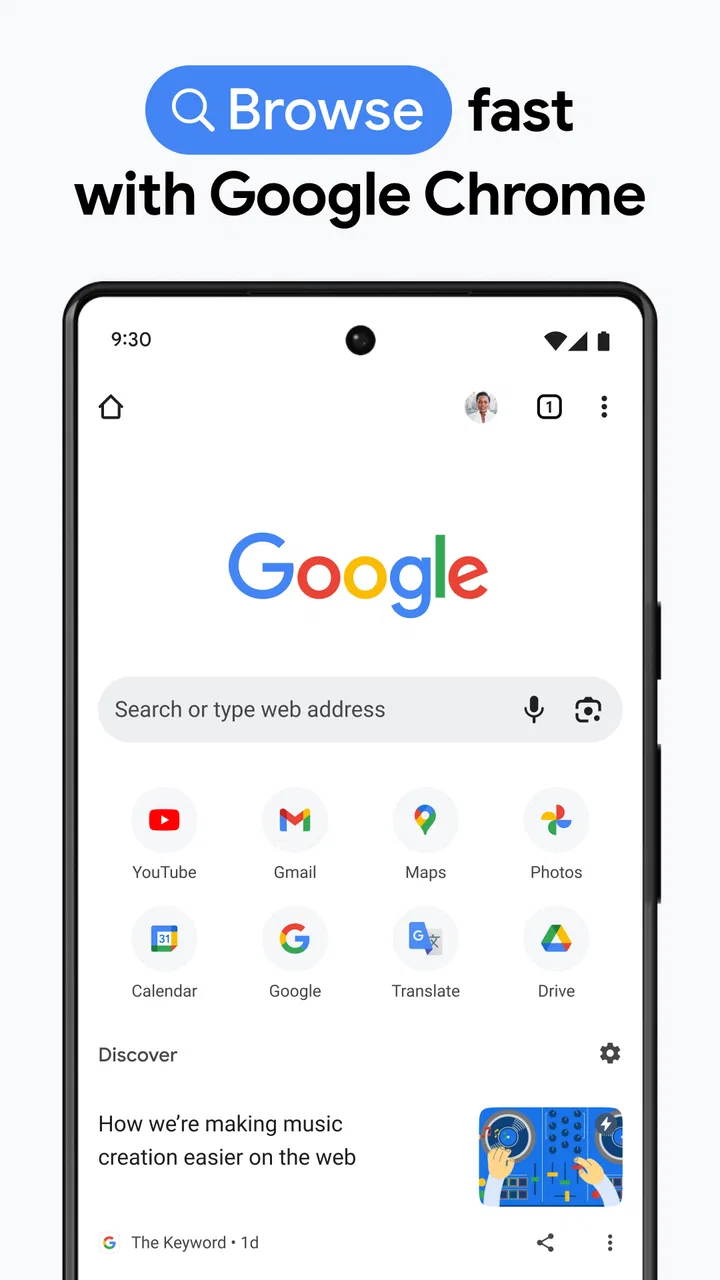
The first thing I notice is how quickly I can get from opening the app to the page I need. The address bar also acts as a search field, so I do not have to decide whether I am entering a web address or asking a question. That sounds basic, yet it removes a small amount of friction every time I use the browser.
In-Depth Coverage of Google Chrome
The interface is familiar enough that I rarely need to think about where a control is located. Tabs, browsing history, bookmarks, downloads, and page settings are close at hand, while the main screen can be used for a quick search or to revisit frequently opened pages. I appreciate this simplicity when I am checking a delivery page, reading an article, or opening a link from another app.
Chrome is especially convenient for people already using Google accounts across devices. Signing in can make bookmarks, passwords, browsing information, and open pages easier to reach elsewhere, depending on the settings chosen. I treat synchronization as a tool rather than something to activate blindly: I review what I want connected, particularly on a shared phone or a device used for both personal and work accounts.
A realistic example is a busy morning when I receive a link in email, open a company document from a chat, check a map result, and then return to an article I started the night before. Chrome handles that chain more naturally than a collection of separate in-app browsers. The tab switcher lets me keep those tasks available instead of repeatedly searching for the same pages.
Small controls that make a noticeable difference
One useful habit is opening the tab overview before closing anything. It is easy to accumulate pages without realizing it, but that view gives me a chance to group my thinking: shopping pages together, travel research together, and work pages somewhere else. When the list becomes cluttered, closing old tabs is not just tidier; it makes finding the page I actually need much faster.
I also use the share menu rather than copying addresses manually. It is a simple workflow, but it preserves the page context and reduces mistakes when sending something to a contact or another app. For pages I want to read later, bookmarks are more dependable than assuming I will find the same search result again.
Chrome’s page controls are helpful when a website is difficult to read on a phone. Zooming, translating a page when the option is available, and switching between desktop and mobile layouts can rescue a site that was not designed well for small screens. These tools do not fix every badly built website, but they give me more control than simply accepting the default view.
Another practical detail is the ability to search within a page. On long instructions, policy pages, recipes, or support documents, I can look for a specific word instead of scrolling through everything. This is one of those features that is easy to overlook until it saves several minutes.
What the browser does well for communication
Chrome is a strong choice when communication happens through websites rather than a single messaging service. I can access web versions of email, collaboration tools, customer portals, discussion boards, and social platforms without installing a separate app for every service. For someone who moves between many online accounts, that central access point is genuinely useful.
It is also a sensible fallback when an app is unavailable, outdated, or missing a particular function. A website may offer a setting that the mobile app hides, or a service may work better in a browser when I need to manage several pages at once. Chrome does not replace dedicated apps in every situation, but it often gives me a second route when an app becomes restrictive.
That flexibility has a trade-off. Websites opened inside Chrome can feel less polished than native applications, especially for services built around notifications, camera access, or continuous background activity. If I spend most of my time in one platform, its dedicated app may be faster and more convenient. Chrome is at its best as the broad access layer, not necessarily as the perfect replacement for every specialized app.
You May Also Like

 AliExpress - Shopping App
AliExpress Makes Global Shopping Feel Personal, but Shoppers Bear the Risk
AliExpress turns a global marketplace into a pocket-sized discovery engine. Its reach is useful, its shopping loop compelling, and its trade-offs easy to miss.

 Lords Mobile: Kingdom Wars
Lords Mobile Is a Kingdom-Building Routine, Not a Quick Match
A case-by-case verdict on the building, battles, device demands, and social commitments that make Lords Mobile rewarding for some players and exhausting for others.

 PDF Scanner app - TapScanner
TapScanner Makes Paperwork Easier to Capture, Check, and Share
TapScanner makes scanning with a phone feel less like a rescue operation and more like a dependable step in getting work done. Its capture tools are useful, though not flawless.

 Block Blast!
Block Blast! Shows How Much a Puzzle Game Can Leave Out
A quiet grid game shows why puzzle players increasingly value instant clarity, repeatable skill and low-pressure play—and where the genre still needs to catch up.

 Family Space
Family Space Review: A Shared Routine That Makes Family Life Easier
A parenting app earns its place not by adding more noise, but by making everyday coordination easier. Family Space gets that balance mostly right.

 1Weather Forecasts & Radar
1Weather Forecasts & Radar Makes the Daily Check Worthwhile
A good forecast does more than predict rain. This week's pick turns changing conditions into a clear, practical reason to check before you step outside.
More From Our News Desk
View All News


What has changed over time and what that means now
Chrome has been available since February 7, 2012, so its current experience is the result of long-term development rather than a newly launched product. Its identity has gradually settled around speed, account continuity, tab management, and security-focused browsing. I see that evolution in the way the app now serves both quick searches and more involved research sessions.
The important point for existing users is that the browser’s value comes from accumulated refinement. People who installed it years ago may still recognize the basic layout, but the surrounding experience has become more capable: opening links, moving between devices, handling saved information, and adjusting pages can all fit into one routine. That continuity is useful because I do not have to relearn the entire app after every change.
At the same time, familiarity can hide settings that deserve attention. A user who has never reviewed synchronization, saved passwords, site permissions, or browsing history may be accepting defaults without understanding them. I recommend spending a few minutes exploring the privacy and security areas after installation, not because Chrome is unusable otherwise, but because a browser sees so much of ordinary online life.
For someone moving from another browser, the most important question is not whether Chrome can open websites. Nearly every modern browser can do that. The real question is whether its connection to Google services, account syncing, and existing browsing habits saves enough time to justify changing your routine. If your bookmarks and passwords already live elsewhere, migration may be more effort than the switch initially appears to require.
How it compares with familiar alternatives
Compared with a privacy-first browser, Chrome feels more integrated into the wider Google ecosystem, while an alternative may put stronger privacy controls at the center of its identity. I would choose the privacy-focused option when minimizing tracking and reducing dependence on a large ecosystem is my main goal. I choose Chrome when compatibility, familiar account access, and broad website support matter more in my daily routine.
Compared with a browser built around aggressive customization, Chrome is less about changing every visual detail and more about keeping the basic experience recognizable. That is a benefit for people who want predictable navigation, but a drawback for users who enjoy extensive interface control, unusual tab layouts, or a highly personal browsing workspace.
Compared with a platform-specific browser, Chrome can be the more practical choice when I regularly move between different operating systems or devices. A device-maker browser may feel especially smooth on its own hardware and may suit users who prefer to keep services within that manufacturer’s ecosystem. Chrome makes more sense when my browsing life is spread across services and devices associated with Google.
There is no universal winner here. A person who mainly reads privacy-sensitive material, wants deep customization, or dislikes account-centered ecosystems may be happier elsewhere. Someone who needs a dependable general-purpose browser for a wide range of websites will probably find Chrome easier to live with than to replace.
Practical workflows I would recommend
For research, I suggest keeping only the pages that support the current question open, then bookmarking the useful sources before closing the rest. This avoids the common trap of treating a crowded tab list as a filing system. Chrome makes it easy to keep pages available, but the user still needs a habit for deciding what deserves to remain open.
For shopping, I use separate tabs for product details, delivery information, and return policies rather than relying on one page to answer everything. The benefit is not just convenience; it makes comparing conditions less error-prone. I also avoid saving payment-related information on a device that other people regularly use.
Gallery
For travel or appointments, I open confirmation pages before leaving reliable Wi-Fi and save the relevant information in a way I can access again. This is a better plan than assuming a weak connection will always load a page at the exact moment I need it. Chrome can be the access point, but good preparation still matters.
For work, I separate personal and professional browsing through different accounts or profiles where practical. That reduces the chance of opening the wrong saved page or mixing suggestions and history. It also makes Chrome feel less chaotic when the same phone serves several parts of my life.
One less obvious trade-off concerns tabs left open for a long time. Keeping a page available is convenient, but an old tab can show outdated information, expire after a login session, or simply become difficult to trust. I treat long-lived tabs as reminders, not guaranteed records, and reopen important pages when accuracy matters.
Where the experience still has limits
Chrome’s popularity does not remove ordinary browser frustrations. Some websites are overloaded with pop-ups, intrusive prompts, or layouts that behave poorly on mobile screens. The browser can offer controls and workarounds, but it cannot redesign a badly made site. In those cases, a dedicated service app or a different browser may provide a cleaner experience.
Account integration is another point that divides users. It can save time, but it also means I need to be deliberate about which account is active and what information is synchronized. On a shared device, that distinction is particularly important. I would not recommend signing into every available service simply because the option is convenient.
Tab management can become a weakness precisely because Chrome makes opening pages so easy. A person who treats every link as something to keep may end up with a confusing collection that slows down navigation. The solution is not a hidden setting so much as a routine: close what is finished, bookmark what matters, and use history for pages that were only temporary.
Chrome is also not the right tool for every communication need. It will not provide the focused notification flow, offline behavior, or deep device integration that a dedicated messaging, email, or video-call app can offer. If my main requirement is instant conversation rather than access to web services, I would install the appropriate communication app instead of expecting a browser to fill that role.
Who should use it and who should look elsewhere
I would recommend Chrome to people who want a familiar free browser, regularly use Google services, switch between many websites, or need their browsing routine to work across more than one device. It is also a good starting point for less technical users because the core controls are easy to recognize and the app supports a wide variety of websites.
I would be more cautious recommending it to someone whose top priority is minimizing Google integration, reducing account dependence, or customizing every part of the interface. In those cases, a browser designed around privacy or personalization may better match the user’s values, even if it requires learning a different workflow.
Parents and families should also think about context rather than relying only on the Everyone age classification. The app itself is broadly suitable, but the open web contains material for every audience. Device-level supervision, account choices, and sensible browsing habits remain important when children use a phone or tablet.
For existing users, I would not switch away merely because another browser has a more fashionable interface. I would switch if Chrome’s account model, tab clutter, or privacy approach repeatedly conflicts with how I browse. Conversely, I would not switch to Chrome solely because it is popular if my current browser already handles my passwords, bookmarks, and privacy preferences exactly as I want.
What I would watch before committing
When evaluating Chrome over time, I pay attention to whether the app continues to make everyday browsing simpler without turning synchronization into something I have to manage constantly. I also watch how well it handles long reading sessions, multiple accounts, difficult mobile websites, and the transition between phone and other devices.
I would encourage new users to begin with a small setup rather than importing every possible setting immediately. Add the bookmarks you actually use, decide whether synchronization fits your routine, and check the privacy controls before making Chrome your main browser. This approach makes it easier to understand what the app is doing and easier to change course later.
My final view is positive but measured. Chrome is not exciting because it tries to reinvent browsing; it is useful because it removes obstacles from a large number of ordinary web tasks. The free price, broad compatibility, and long development history make it a practical default, while the real decision comes down to how comfortable you are with Google’s ecosystem and how much control you want over your browser habits.
After using it as a general-purpose tool, I see its strongest quality as reliable access to the web without demanding much learning. That is valuable for communication, research, shopping, and daily administration. Just keep your tabs organized, review synchronization deliberately, and choose a more specialized or privacy-centered alternative when those needs matter more than Chrome’s convenience.
FAQs for Google Chrome
01What are the key features of Google Chrome on mobile devices?
Google Chrome on mobile offers a streamlined browsing experience with features like tab management, incognito browsing, voice search, and synchronization across devices. It supports autofill for forms, saves passwords securely, and provides a personalized news feed. The browser is designed for speed and efficiency, making it a popular choice for users.
02How does Google Chrome ensure privacy and security on mobile?
Google Chrome includes robust security measures such as safe browsing, which warns users of dangerous sites. It also offers incognito mode for private browsing sessions and regularly updates to fix vulnerabilities. The browser encrypts data and provides users with control over their privacy settings, including blocking third-party cookies.
03Can I sync my data across multiple devices using Google Chrome?
Yes, Google Chrome allows you to sync bookmarks, history, passwords, and settings across all your devices. By signing in with your Google account, you ensure seamless transitions between mobile and desktop, making your browsing experience consistent and efficient. This feature is particularly useful for users who switch between devices frequently.
04What are the system requirements for installing Google Chrome on Android and iOS devices?
To install Google Chrome on Android, you need a device running Android 7.0 or higher. For iOS, your device must be running iOS 14.0 or later. Ensure you have sufficient storage space and a stable internet connection for the download and installation process. Regular updates may also require additional space.
05How does Google Chrome perform in terms of speed and usability on mobile?
Google Chrome is known for its fast performance and user-friendly interface on mobile devices. It features a minimalist design with quick access to frequently visited sites and a fast search engine integration. The browser efficiently manages resources, making it capable of handling multiple tabs without slowing down the device.
Pros
- Fast loading speed for web pages.
- Seamless integration with Google services.
- Supports a wide range of extensions.
- Frequent updates for security and features.
- Cross-device syncing for bookmarks and history.
Cons
- High RAM usage can slow devices.
- Privacy concerns with data tracking.
- Extensions can sometimes cause crashes.
- Limited customization options.
- May not support older operating systems.


